Creating a VIM Flex Plugin
Please follow the steps below to create your first VIM Flex plugin.
Enabling Developer Mode
Developer Mode is only available in VIM Flex Pro.
To customize VIM Flex with your own scripted plugins, you will need to enable "Developer Mode". You can enable Developer Mode from either of the following locations:
-
From the MCP Server modal (top menu bar robot icon, or
View > MCP Server), click "Enable Developer Mode". -
From the Settings view (
View > Settings > Developer Settings), check the "Enable Developer Mode" checkbox.
Developer Mode: Plugin Manager
Dev Update Button
In "Developer Mode", the Plugin Manager exposes a Dev Update button. Pressing it copies the read-only sample plugins shipped with VIM Flex (located at C:\Program Files\VIM\VIM Flex\SamplePlugins\) into your user plugins directory, seeding it with working reference implementations you can study and modify.
Export / Export All
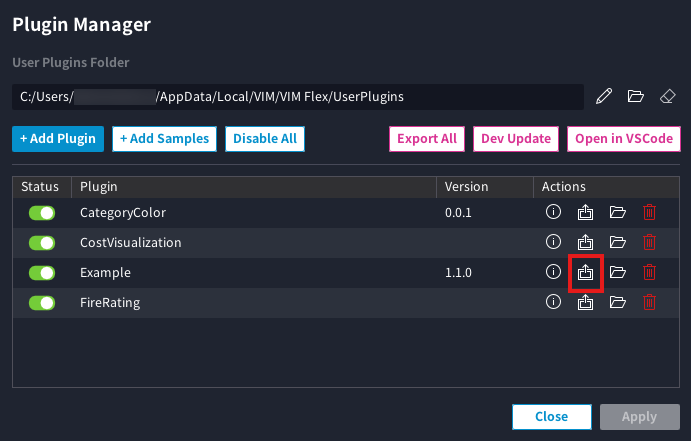
In "Developer Mode", each plugin row exposes an "Export" button, and the Plugin Manager also exposes an "Export All" button near the top of the window.
-
"Export" exports the selected plugin to a single
.vxpfile. VIM Flex will prompt you for a save location. -
"Export All" exports every discovered plugin in your
UserPlugins/directory to a folder of your choice, with one.vxpfile per plugin.
The exported .vxp archive contains the entire plugin folder: every .as source file, the vxp.json metadata (if present), and any other files the plugin ships. File timestamps are preserved inside the archive.
Before sharing a plugin, populate its vxp.json with at least a Name, Version, Author, and Description so recipients know what they are installing.
Developer Mode: MCP Server
When the VIM Flex MCP Server is running in Developer Mode, the AI agent can request plugin activation on your behalf; a consent dialog will appear in VIM Flex listing the plugins to be enabled, and you decide which (if any) to allow.
Plugin Structure
The VIM Flex user interface is primarily defined using AngelScript (.as) files. AngelScript is a scripting language built for 3D real-time applications whose syntax is similar to C# and C++. The scripting layer is invoked every frame to render the user interface via calls to Dear ImGui functions.
Built-In Scripts
The scripts which define the built-in user interface of VIM Flex are stored in the following location. You can use these scripts as reference material for creating your own plugins and customizations.
C:\Program Files\VIM\VIM Flex\Scripts\
When you use the VIM Flex MCP Server in Developer Mode, the AI agent can read these scripts to understand how to create new plugins.
User Plugins Folder
The user plugins folder contains script files (.as) which extend VIM Flex with custom views and workflows. By default, user plugins are stored in:
C:\Users\{user}\AppData\Local\VIM\VIM Flex\UserPlugins\
This location is configurable from the Plugin Manager. Each plugin lives in its own subfolder under UserPlugins/.
Scripting API
The functions available to the script environment are defined in the following location. This file is copied to the User Plugins folder when the "Dev Update" button is pressed in the Plugin Manager.
C:\Program Files\VIM\VIM Flex\Scripts\as.predefined
Plugin File Organization
A typical plugin is organized into a small set of AngelScript (.as) files inside its own folder. For example:
UserPlugins/
└── MyPlugin/
    ├── vxp.json                 # Optional plugin metadata
    ├── MyPluginConstants.as     # Constants, enums, color helpers
    ├── MyPluginDataService.as   # SQL queries against the BIM database
    ├── MyPluginView.as          # UI view (a Window subclass)
    └── MyPluginPlugin.as        # Plugin registration and lifecycle
Plugin Metadata (vxp.json)
You may optionally place a vxp.json file at the root of your plugin folder to describe the plugin. The file and all of its fields are optional — if omitted, the plugin is still discovered and loaded normally, but the Plugin Manager will have no metadata to display.
{
    "Name": "your_plugin_name",
    "Version": "1.0.0",
    "MinApiVersion": "1.0.0",
    "Author": "your_name",
    "Company": "your_company_name",
    "Email": "your_email@domain.com",
    "License": "your_license",
    "Description": "Your plugin description",
    "Url": "https://www.your_domain.com"
}
| Field | Description |
|---|---|
Name | Human-readable plugin name |
Version | Your plugin version string |
MinApiVersion | Minimum VIM Flex scripting API version required |
Author | Author name |
Company | Company or organization |
Email | Contact email |
License | License identifier (e.g. MIT) |
Description | Short description shown in the Plugin Manager |
Url | Website or documentation URL |
Plugin Lifecycle
The following calls illustrate the typical lifecycle of a plugin:
OnPluginInit()
  ├── Create views
  ├── Register workflows
  └── Subscribe to OnVimDataChanged()

OnVimDataChanged()
  ├── Run SQL queries via DeserializeFromQuery()
  └── Update UI state

View.Render()   [called each frame]
  └── Draw ImGui widgets

OnPluginShutdown()
  ├── Unsubscribe all event tokens
  └── Destroy views
Creating a New Plugin
The fastest way to get started is to let the AI agent write the plugin for you. With the VIM Flex MCP Server running in Developer Mode, ask your AI agent to create a plugin and it will:
-
Read the built-in scripts and sample plugins as reference material.
-
Write the plugin source files into your
UserPlugins/directory. -
Call
vim_request_enable_user_pluginsto prompt you to enable the new plugin in the Plugin Manager. -
Compile the plugin with the
vim_compileMCP tool and report any errors.
Working with VSCode
Please follow the steps below to work with VIM Flex scripts in VSCode:
-
Go to
View > Plugin Manager -
Set the User Plugins folder to the desired location.
-
Press the "Dev Update" button to initialize the User Plugins folder with example code and the
as.predefinedAPI reference file. -
Open the User Plugins folder in VSCode.
-
Install the "AngelScript Language Server" extension to enable AngelScript syntax highlighting and code navigation.
-
This extension reads the
as.predefinedfile in your workspace to provide auto-completion hints. -
The example code contains
#includestatements which help with code navigations but which are otherwise completely optional (see below).
-
-
Explore and modify the content in the newly copied
Exampleplugin folder then compile and test.
You can initialize a Git repository in your User Plugins folder to help maintain your VIM Flex plugins.
Compling and Testing Your Plugin
Use the following button in the menu bar to recompile all plugins. Pressing this button re-initializes the application with the latest scripted plugin code.

The following script files are included in the compilation process:
-
All script (.as) files under the Built-In Scripts folder
C:/Program Files/VIM/VIM Flex/Scripts/ -
All script (.as) files under the User Plugins folders which have been enabled in the Plugin Manager.
If you are using the VIM Flex MCP Server in Developer Mode, the AI agent can take care of the following repetitive tasks for you:
- Recompiling the scripts
- Fixing any compilation errors
- Re-opening the previous VIM file you were working on
- Re-opening the workflow you were working on
Plugins which fail to compile will not be loaded; error messages will be displayed in the script console and in the Plugin Manager.
Debugging with the Script Console
You can open the script console from View > Script Console. Log messages can be added from your scripts via the following functions:
VimFlex::Console::Log("This is a log message.");
VimFlex::Console::Warn("This is a warning message.");
VimFlex::Console::Error("This is an error message.");
Exporting Your Plugins
User plugins can be packaged into a single .vxp file and shared with other VIM Flex users. A .vxp file is a standard ZIP archive containing the plugin's folder contents, including all of its AngelScript (.as) source files plus its optional vxp.json metadata file.
Open the Plugin Manager from View > Plugin Manager and press the "Export" button to create a new .vxp file for that plugin.