Getting Started: VIM Flex MCP Server
The MCP Server is only available in VIM Flex Pro.
In this section, we cover how to get up and running with the VIM Flex MCP Server, allowing you to ask questions to an AI about your locally loaded VIM file, and enabling you to create custom views and workflows via the VIM Flex scripted plugin system.
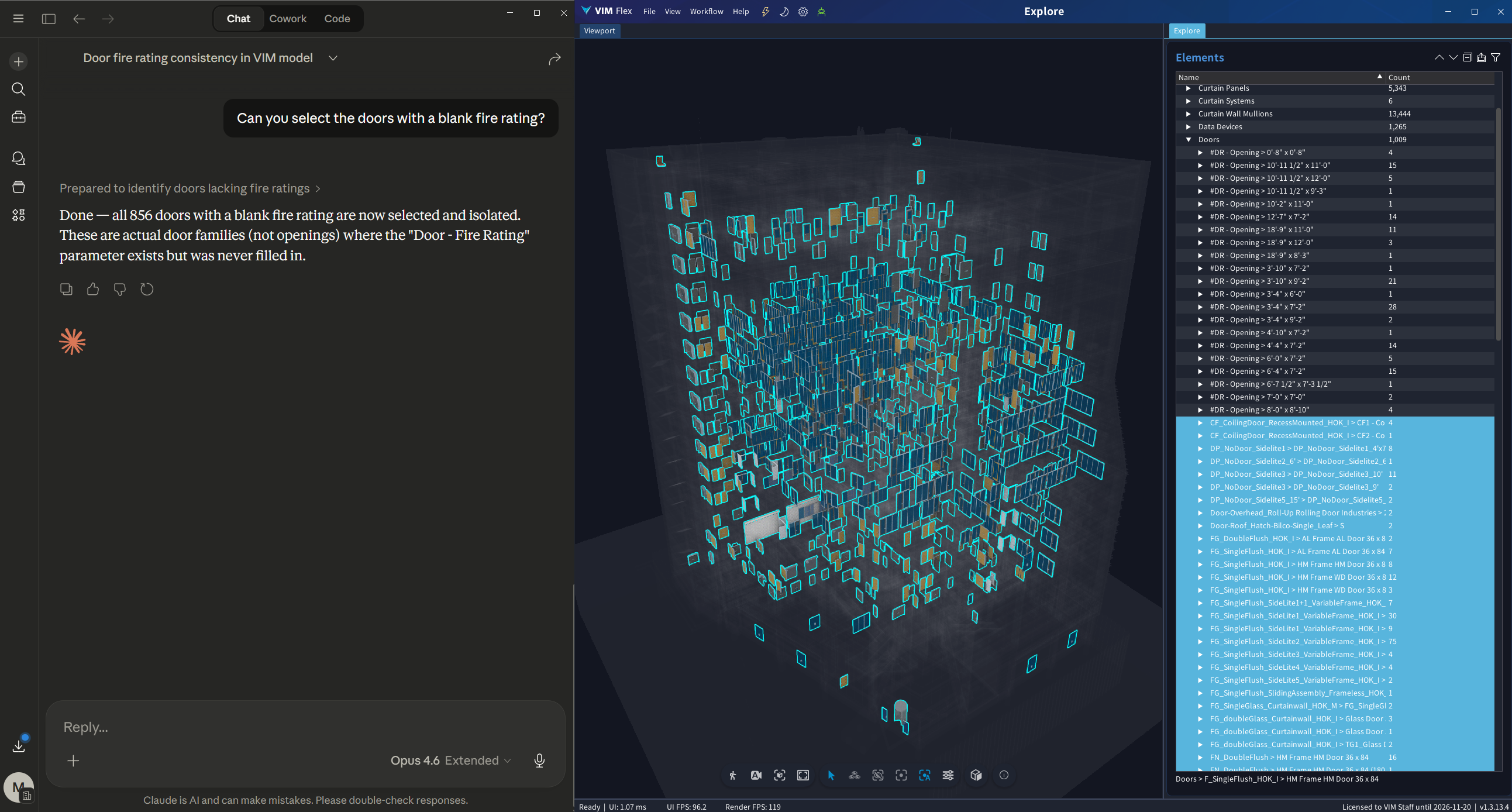
For example, in the screenshot below, we asked Claude the following question:
"Can you select the doors with a blank fire rating?"
Requirements
VIM Flex implements the "Model Context Protocol" (MCP), a standard communication protocol between applications and AI tools. The current integration focuses on Claude Desktop due to its simple MCP server registration process and its capabilities at understanding and working with the VIM Flex data model and its scripting system.
Required Software:
-
Claude Desktop with Opus 4.8 (high effort) or better.
-
Node.js to run the STDIO transport communication bridge between VIM Flex and Claude Desktop.
If you are using an AI application other than Claude Desktop, please consult your AI application's documentation to map configuration steps of this page to your own setup.
Setup
Please follow the steps below to register the VIM Flex MCP Server with Claude Desktop.
1. Install Node.js
If you have not already done so, please install the latest version of Node.js and ensure that the installed "node" application is available in your PATH. You can test this in your terminal by running:
node -v
# output: v20.13.1
2. Close Claude Desktop
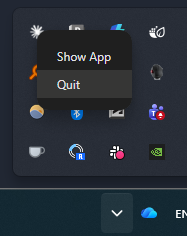
MCP configuration changes typically require Claude Desktop to be restarted to clear its internal cache. To completely close Claude Desktop, right-click the Claude Desktop icon in the task bar icons and press "Quit".
3. Open the VIM Flex MCP Server dialog
-
Open VIM Flex
-
Ensure you have upgraded to VIM Flex Pro.
-
To help test your setup, open a VIM file.
-
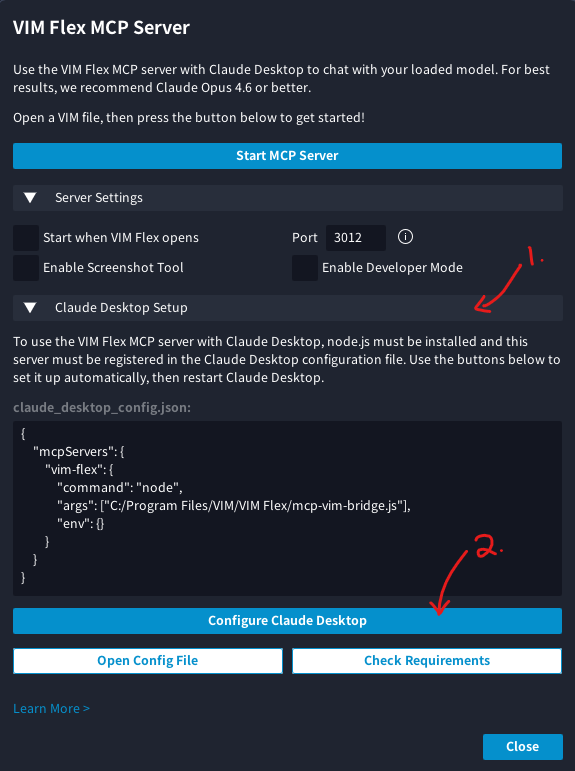
Go to "View" > "MCP Server" (or click on the little robot icon in the top menu bar).
-
Expand the "Claude Desktop Setup" group tab and press the "Configure Claude Desktop" button.
-
To validate your setup in the future, press the "Check Requirements" button.
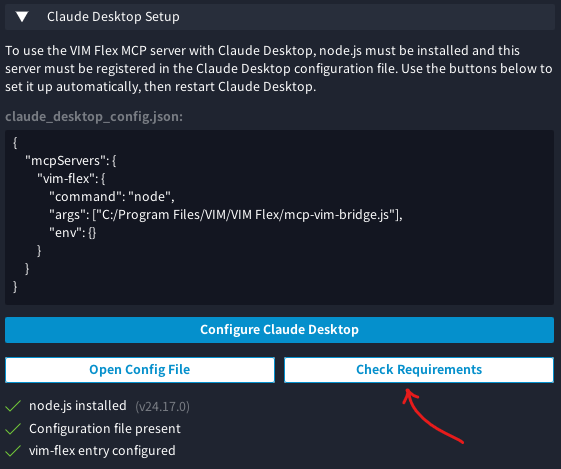
If you are using Claude Code in the VIM Flex UserPlugins folder, create the file .mcp.json at the root of the UserPlugins folder and populate it with the snippet shown above. While the VIM Flex MCP server is running, it will show up in the Claude Code /mcp list.
4. Start the VIM Flex MCP Server
-
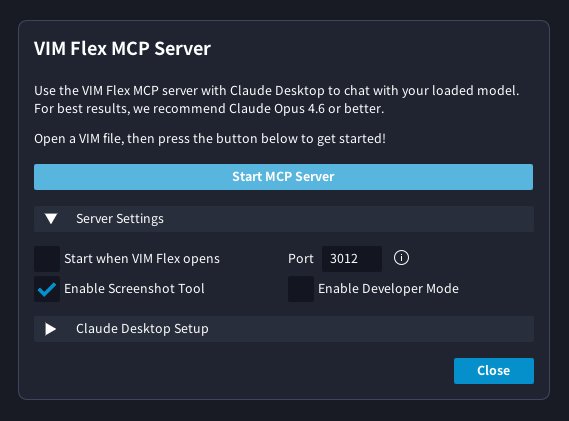
In the VIM Flex MCP Server dialog, press "Start MCP Server", then close the dialog.
-
The little robot icon in the top menu bar will remain green to indicate that the VIM Flex MCP Server is running.
5. Open Claude Desktop
-
Open Claude Desktop
-
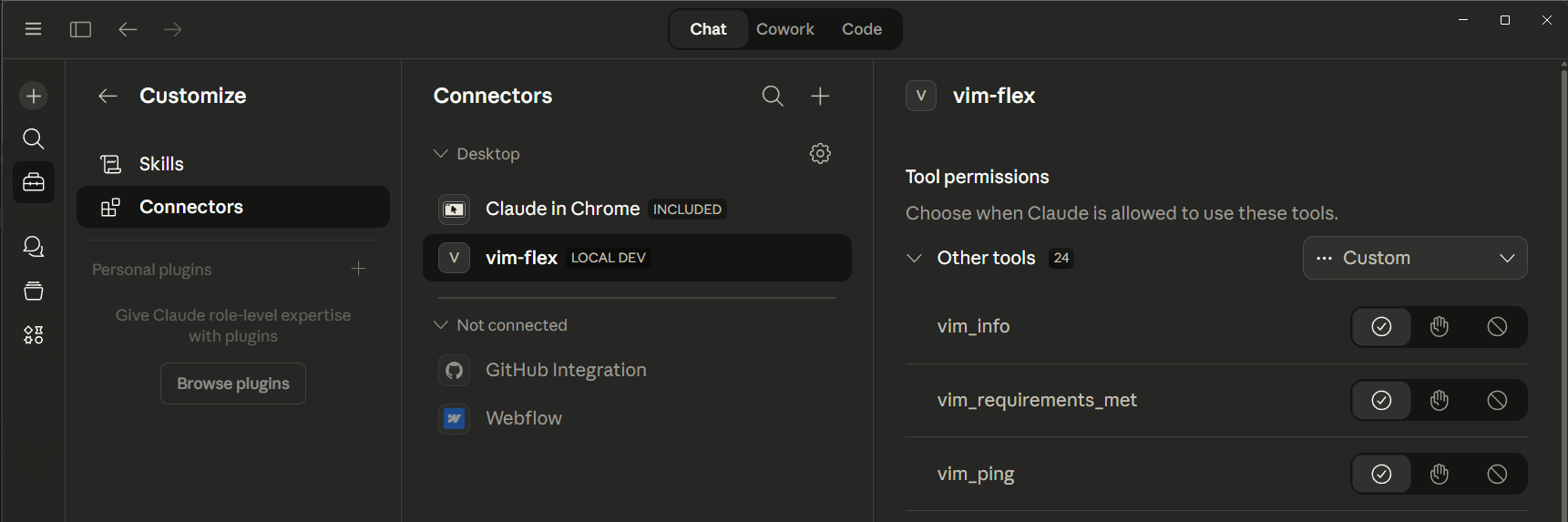
Go to "Customize" > "Connectors"
-
Ensure the "vim-flex" connector is present. You may modify its tool permissions here.
-
Start a new conversation with Claude.
-
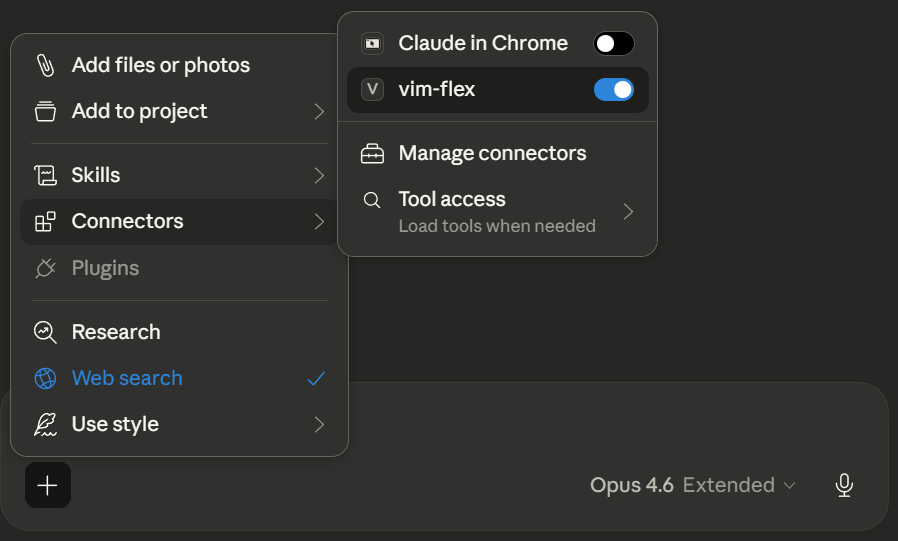
Press the "+" button and go to "Connectors" and enable the "vim-flex" connector.
-
You can now start chatting with Claude about your loaded model in VIM Flex.
MCP Server Modes
The VIM Flex MCP Server operates in one of two modes:
Query Mode (Default)
By default, the VIM Flex MCP Server starts in "Query Mode", allowing you to ask questions about the VIM model and letting Claude select and isolate elements in your model on your behalf.
Developer Mode
To create custom scripted plugins and workflows with Claude, you must enable "Developer Mode". To do this, click on "Enable Developer Mode" in the VIM Flex MCP Server dialog.
-
For best results, use the most capable AI model when interacting with VIM Flex (ex: Opus 4.8).
-
If you have many connectors active in a conversation, mentioning "VIM" or "VIM Flex" is usually sufficient to guide Claude towards using the VIM Flex MCP server.
Troubleshooting
vim-flex connector is missing
If the "vim-flex" connector is missing from your Claude conversation:
-
✅ Ensure you have the latest version of Node.js installed on your machine.
-
✅ Ensure you have correctly registered the MCP server in claude_desktop_config.json (see above)
-
✅ Ensure the VIM Flex MCP Server is running.
-
✅ Completely close and restart Claude Desktop then start a new conversation; this typically resolves any caching issues.