VIM Flex Plugins
Plugins are only available in VIM Flex Pro.
With VIM Flex scripted plugins, you can extend and customize the application interface to your suit your specific needs.
Plugin Manager
VIM Flex loads user plugins using an allowlist model. Every plugin is disabled by default and must be explicitly enabled before it will compile or run. Enabling is done via the Plugin Manager, accessed from the top menu bar:
View > Plugin Manager
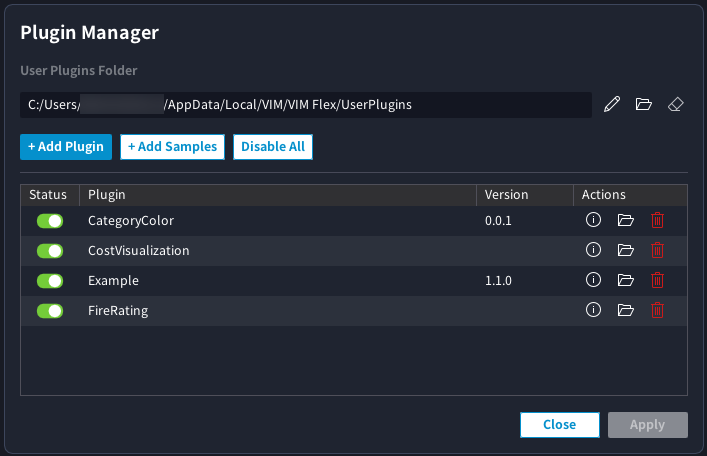
The Plugin Manager modal lists every plugin discovered in your user plugins directory and lets you toggle each one on or off. When changes are applied, all enabled plugins are compiled and the application is re-initialized with the newly loaded plugins.
User Plugins Folder
The user plugins folder contains script files (.as) which extend VIM Flex with custom views and workflows. By default, user plugins are stored in:
C:\Users\{user}\AppData\Local\VIM\VIM Flex\UserPlugins\
This location is configurable from the Plugin Manager. Each plugin lives in its own subfolder under UserPlugins/.
Adding Plugins
If you have received a .vxp file from a trusted source, you can add it to your own UserPlugins/ folder through the Plugin Manager:
-
Open
View > Plugin Manager. -
Click the "+ Add Plugin" button.
-
Select the
.vxpfile in the file dialog. -
An "Add Plugin" review dialog appears, showing a tree of the files that will be written into your
UserPlugins/directory. If any files in the archive conflict with files you already have, the dialog flags them and lets you deselect individual entries before proceeding. -
Click "Add" to complete the import.
After import, the new plugin appears in the Plugin Manager's list. Because new plugins are disabled by default, you will need to toggle the plugin on before it compiles and runs.
important.vxpfiles contain AngelScript source code that executes inside VIM Flex and can query your BIM data, modify the 3D scene, and interact with the file system through the scripting API. Only add.vxpfiles from sources you trust and which have been reviewed by your IT personnel.
Guide: Adding the Bundled "Example" Plugin
VIM Flex ships with a ready-to-install sample plugin at:
C:\Program Files\VIM\VIM Flex\SamplePlugins\Example.vxp
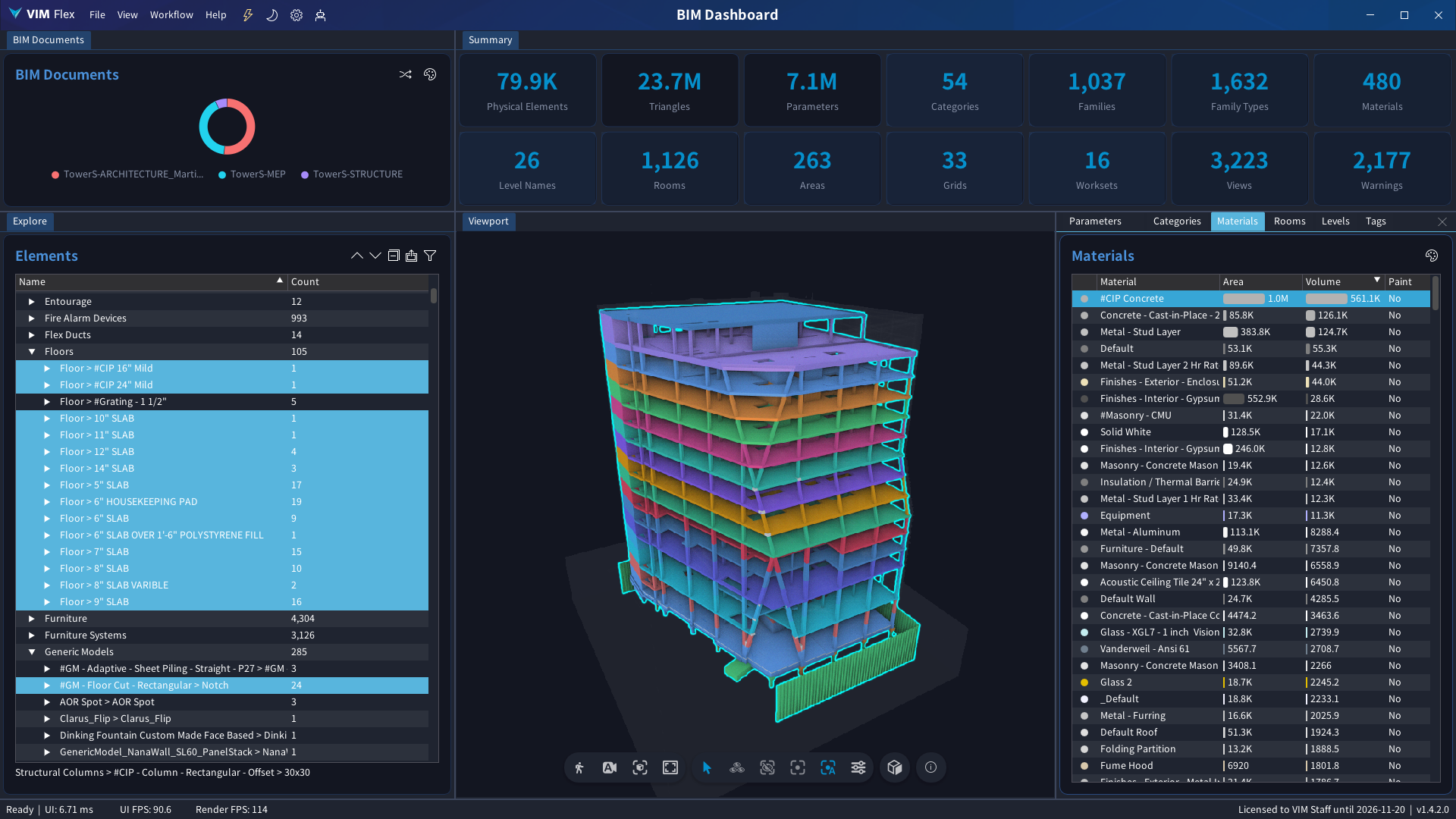
The Example plugin is a fully-featured BIM analytics dashboard that demonstrates the most common plugin patterns (SQL queries, tree views, event subscription, scene selection, custom workflows, and widget rendering). It is a good starting point for studying how plugins are structured.
To install it:
-
Open
View > Plugin Manager. -
Click the "+ Add Plugin" button.
-
In the file dialog, browse to
C:\Program Files\VIM\VIM Flex\SamplePlugins\and selectExample.vxp. -
In the "Add Plugin" review dialog, confirm the file list and click "Add".
-
Back in the Plugin Manager, toggle the
Exampleplugin on. -
Load a VIM file and go to "Worfklow > Examples > BIM Dashboard" to see the plugin in action.
Once installed, the plugin's source files live under your UserPlugins/Example/ folder and can be freely edited or duplicated as the basis for your own plugins.