Viewport Controls
Mouse Inputs 🖱️
Left Mouse Button
- Click to select an element
- Click on the background to clear the selection
- Double-click to frame the camera onto the selected element
- When in "Orbit Mode", press and drag to rotate the camera around the pivot
- When in "Walk Mode", press and drag to look around
Middle Mouse Button
Press and drag to pan the camera up, down, left, or right
Right Mouse Button
Click to display the context menu
Mouse Wheel
- Scroll to move forward/backward
- Hold Ctrl and scroll to change the camera move speed
Keyboard Inputs ⌨️
Movement
- W or Up Arrow - Move forward
- A or Left Arrow - Move left
- S or Down Arrow - Move backwards
- D or Right Arrow - Move right
- Q - Move up
- E - Move down
- Shift - Hold to move 2x faster while pressing the other movement keys
- Ctrl - Hold to move 4x faster while pressing the other movement keys
- Ctrl + Shift - Hold to move 8x faster while pressing the other movement keys
Camera
- Alt + C - Toggle between "Walk Mode" and "Orbit Mode".
- Home - Reset the camera
Selection
- B - Enable section box
- Alt + B - Toggle section gizmo visibility
- F - Frame the camera to your selection
- Alt + F - Toggle auto-camera mode to automatically frame the camera to your selection
- G - Isolate your selection
- Alt + G - Toggle auto-isolate mode to automatically isolate your selection
- V - Toggle the visibility of the selected object
- Ctrl - Hold and left-click to add/remove elements from your selection
- Esc - Clear your selection
Control Bar

1. Toggle Walk Mode (Alt + C)
Press to toggle. When enabled, the camera operates in "Walk Mode" instead of the default "Orbit Mode". Walk mode movement speed is slower and is recommended to navigate building interiors.
2. Auto Camera Mode (Alt + F)
Press to toggle. When enabled, the camera will automatically frame itself to your selection.
3. Frame Selection (F)
Press to frame the camera to your selection. Disabled if Auto Camera Mode is enabled.
4. Frame All (Home)
Press to reset the camera to its home position, framing the entire model.
5. Clear Selection (Esc)
Press to clear the current selection.
6. Show All
Press to show all hidden elements.
7. Show/Hide Selection (V)
Press to toggle the visibility of the current selection.
8. Isolate Selection (G)
Press to isolate the current selection. Disabled if Auto Isolate is enabled.
9. Auto Isolate Mode (Alt + G)
Press to toggle. When enabled, the selection will be automatically isolated.
10. Isolation Settings
Press to open the "Settings" view to control isolation settings.
11. Section Mode (B)
Press to enable section mode.
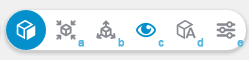
-
11.a. Section to Selection (B)
Press to fit the section box to the current selection. -
11.b. Section All
Press to reset the section box to the entire model. -
11.c. Gizmo (Alt + B)
Press to toggle. When enabled, the section box gizmo will be displayed in the viewport. -
11.d. Auto Section
Press to toggle. When enabled, the section box will fit to the current selection. -
11.e. Section Settings
Press to open the "Settings" view to control the section top, side, and bottom offsets.
12. Controls
Press to display a summary of the viewport controls.